

Overview
The vendor All Orders section allows you to review orders made for your shop.
Orders Table
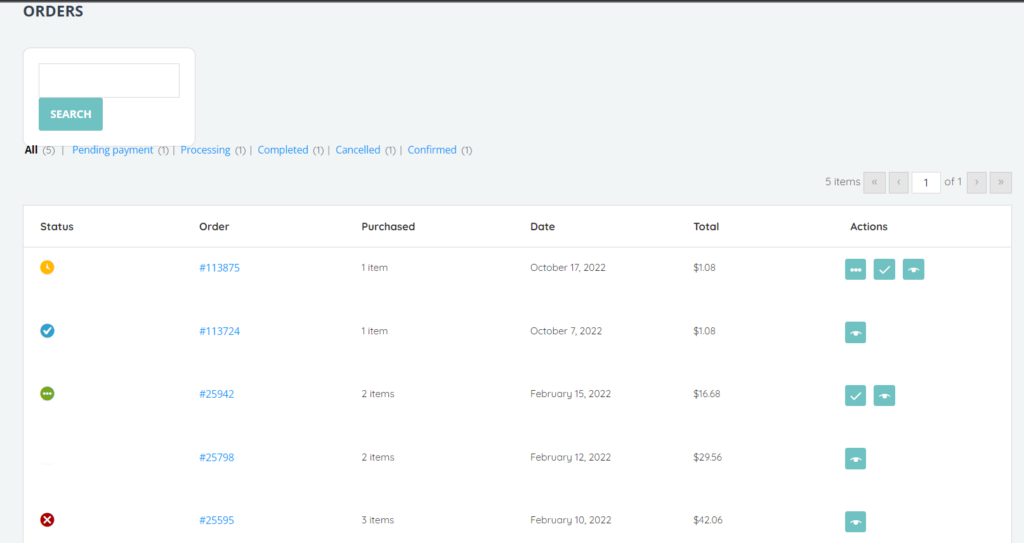
The All Orders table displays the following columns:
- Status – Status of the Order which can be pending payment, processing, completed, or canceled.
- Order – Order Number or ID
- Purchased – Number of Product items Sold for this Order
- Date – Date of the Order
- Total – Total Price of the Order
- Actions
- Processing
- Complete – which sets the order status to completed
- View – which views the order details page displaying the Order ID, payment method for the Order, Date and time the order was created, and Status where the user can either confirm or deny the order. This page also includes a “Customer Payment Page” hyperlink that directs to the customer order checkout page which includes customer billing details and the order summary.
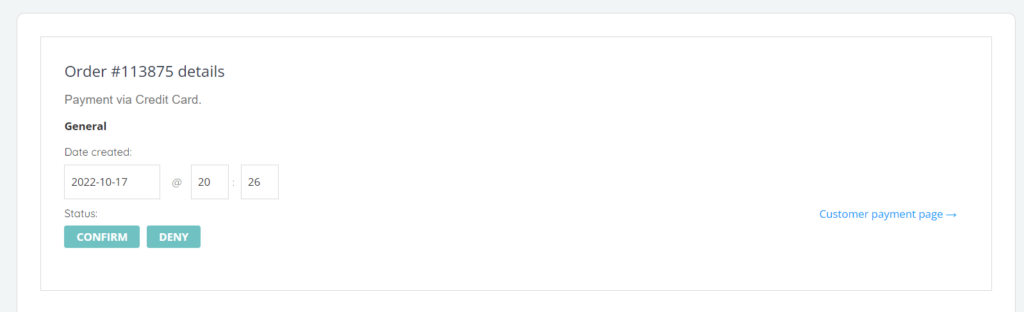
The order view page also includes the following sections:
-
-
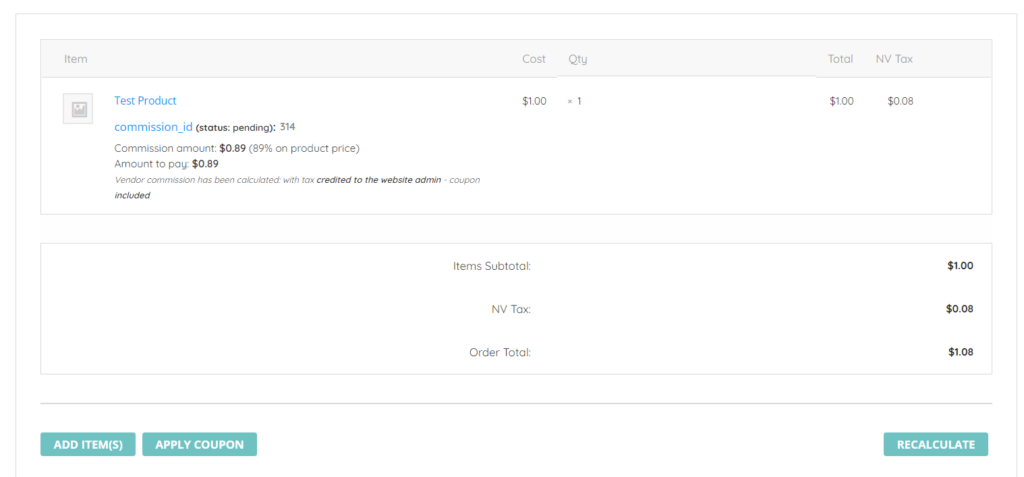
- Order summary including product item and commission details for the product item, the cost of each item, quantity of each item, total, and NV tax. It also includes the subtotal amount of the order items, NV Tax, and order total.
-
An admin user can add items to the order by adding product, fee, shipping price, and tax amount. They can also add a coupon code to the order, and recalculate the order total after the applied changes.
-
-
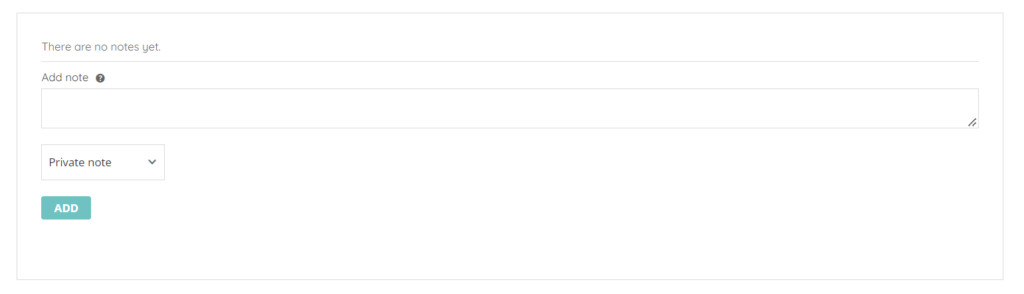
- Order notes section- User can add a note and set it as either private note or note to be sent to the customer.
-
-
-
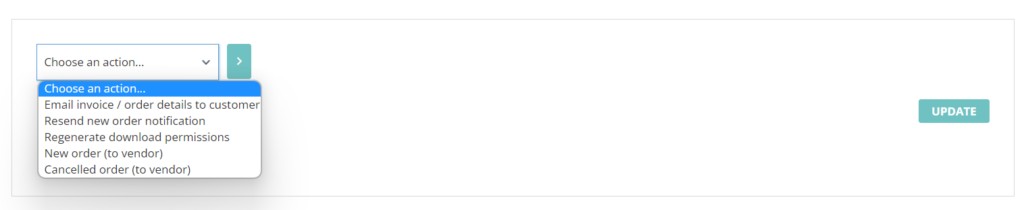
- Choose an action – User can email invoice to customer, resend new order notification, regenerate download permissions, add a new order to the vendor, or cancel the order which is also sent to the vendor.
-