

Overview
The vendor Add Product section allows the user to add a new product.
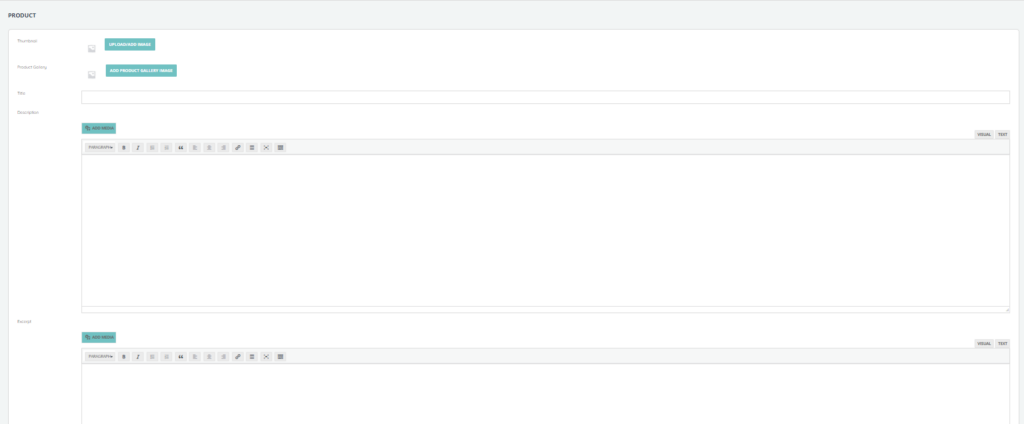
The first section of the page includes a general product information form will the following inputs:
- Thumbnail – The user uploads a product thumbnail image
- Product Gallery – The user uploads product gallery image(s)
- Title – The product title or name
- Description – The user can input the product description which could include text or images
- Excerpt – The user can input the product description which could include text or images
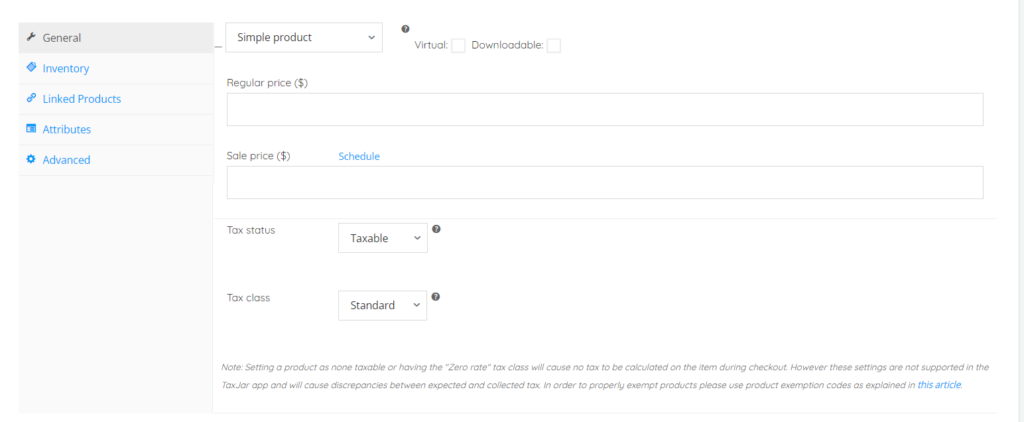
The second section includes additional product information which is categorized by General, Inventory, Linked Products, Attributes, and Advanced.
- The General tab includes:
- Product type – User selects the product type from a drop down menu
- Virtual (intangible product that is not shipped) or Downloadable (give access to a file) product checkbox
- Regular price – The regular unit price of the product
- Sale price – The unit price with which the product will be sold.
- Tax status – Whether the product is taxable, or shipping cost only is taxable, or none.
- Tax class – The tax class which will be used to apply tax to a product. The user selects Standard, reduced rate, or zero rate from the drop down menu.
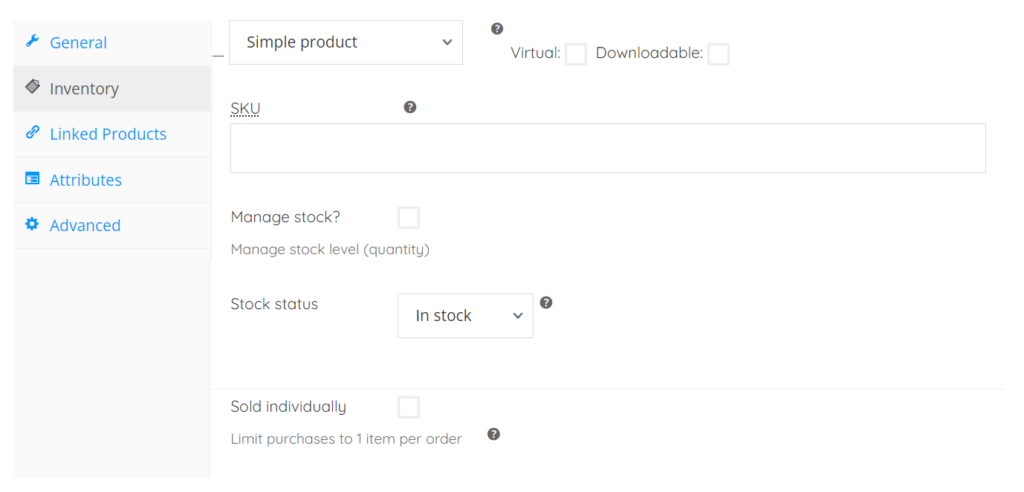
- The inventory tab has the following inputs:
- SKU – The stock keeping unit of the product
- Manage stock textbox which when checked allows the user to manage the stock level quantity by entering the stock quantity of the product
- Stock status – Whether the product is in stock, out of stock, or on backorder
- Sold individually checkbox – This limits purchasing the product to only 1 item per order
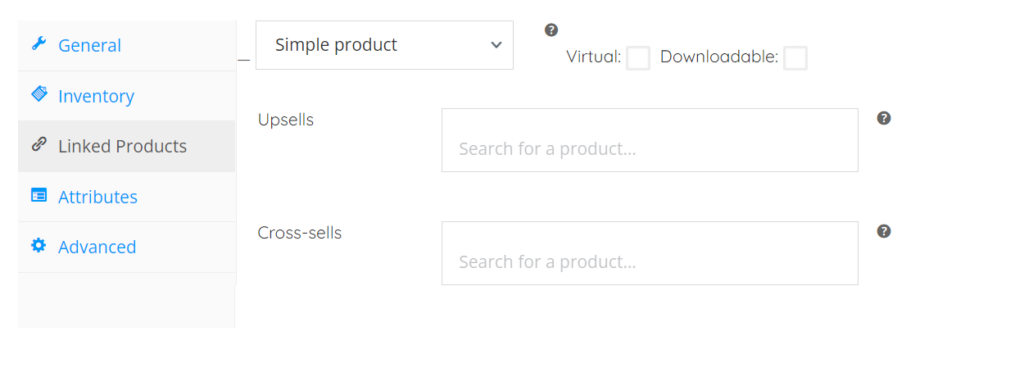
- The Linked Products tab has the following inputs:
- Upsells – The user searches for a product to be recommended instead of the current product
- Cross-sells – The user searches for a product to promote in the cart based on current product
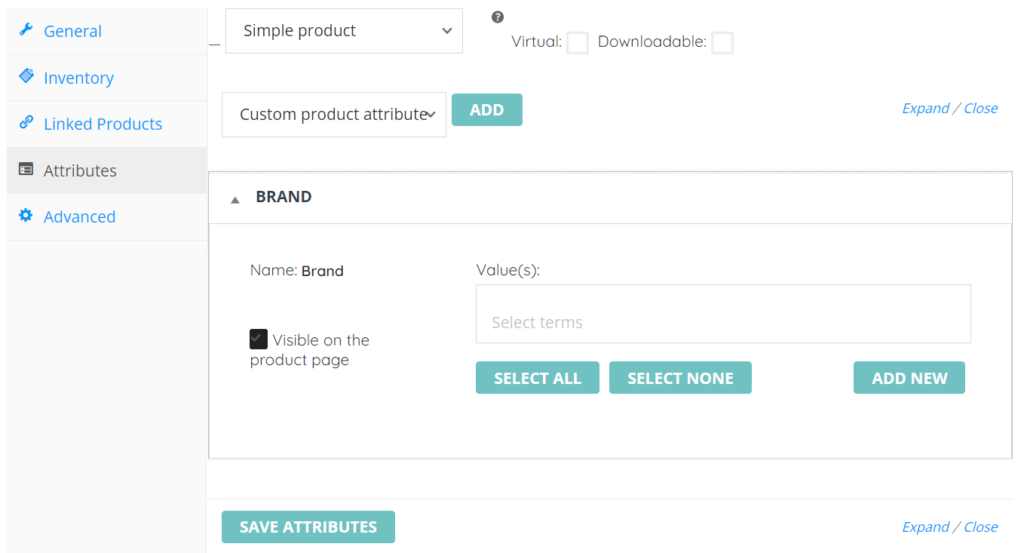
- The Attributes tab includes:
- Custom product attributes – The user chooses a product attribute like brand, color, scent, title, size, or style from a dropdown list
- Add – The user adds a custom attribute and assigns it a value
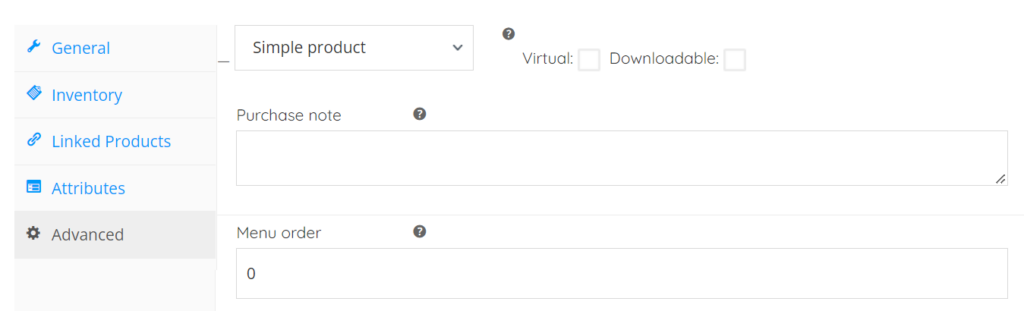
- The Advanced tab includes:
- Purchase note – An optional note to be sent to the customer upon purchase
- Menu order – Custom ordering position
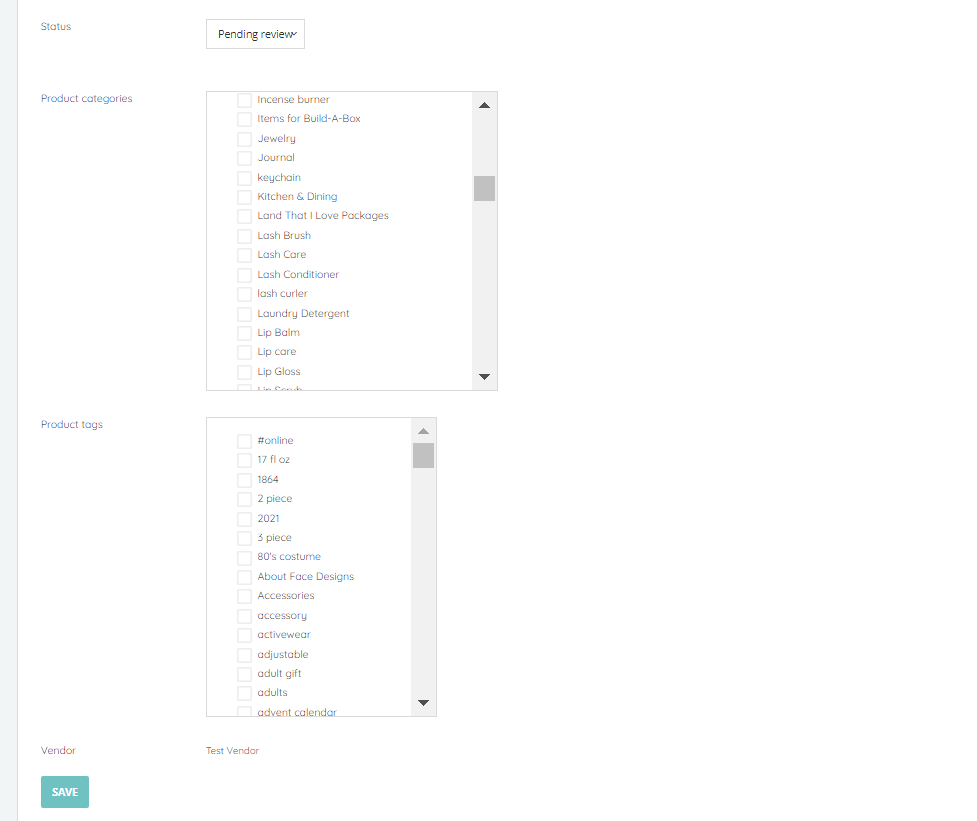
- The third section includes product status (pending review or draft), Categories associated to the product, and tags associated with the product. It also includes the name of the vendor selling the product and a save button.